LaunchNext 2.4.0, the Best Open Source Launchpad for macOS 26 Now Supports Trackpad Gestures, Hot Corners & App Uninstaller
Introduction
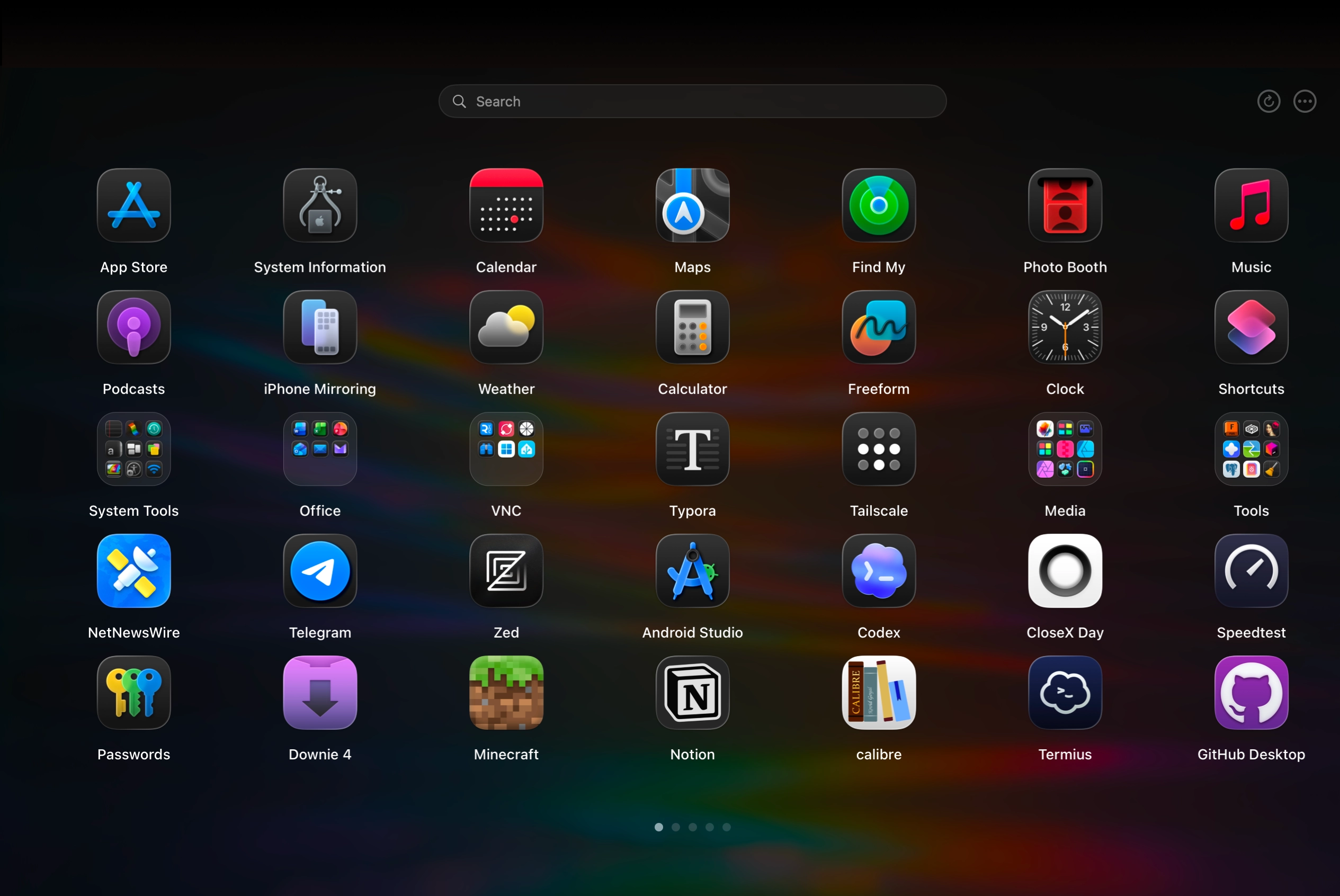
About six months ago, macOS Tahoe quietly removed the classic Launchpad grid. I went looking for an alternative, couldn’t find one that felt right, and ended up building LaunchNext — a free, open source Launchpad replacement for macOS 26. The first version was far from perfect, but the community feedback was incredible and kept me going.
I’ve been shipping updates steadily since then. Each one got closer to what I actually wanted the app to be. 2.4.0 is the one where I feel like it finally got there — with this release I’d say about 97% of what I originally set out to build is done.
- 🐙 GitHub: https://github.com/RoversX/LaunchNext
- 🌐 Website: https://closex.org/launchnext
- 📚 Docs: https://docs.closex.org/launchnext
What’s New in 2.4.0
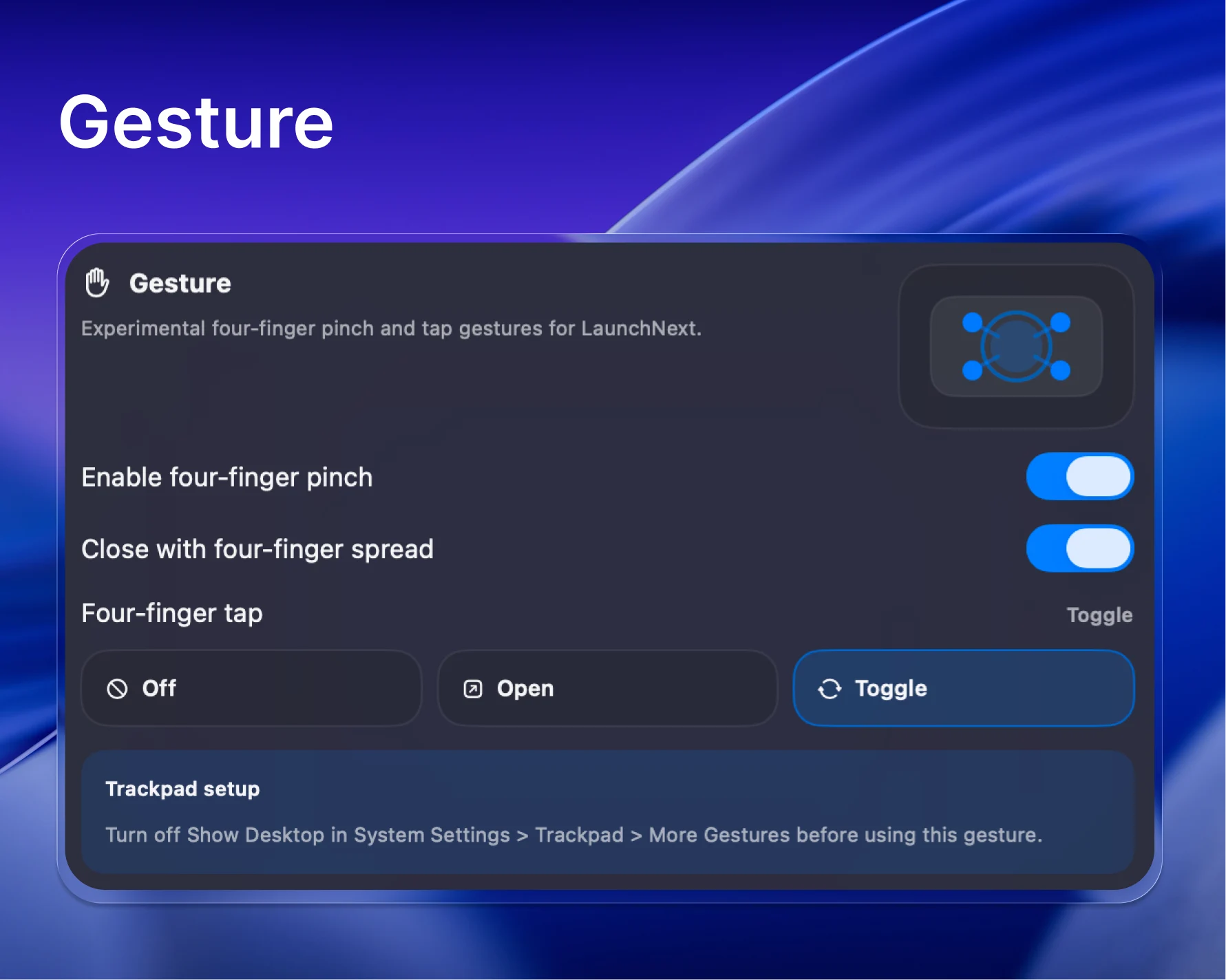
Native Trackpad Gesture
Four-finger pinch-in now opens LaunchNext. Spread-to-close and tap-to-dismiss are optional.
I’ve wanted this since day one. The whole point of building a Launchpad replacement is that it should feel like it belongs on macOS — and nothing breaks that feeling more than having to reach for a hotkey every time. Trackpad gestures are how macOS users naturally think about switching contexts.
It’s marked experimental for now. Gesture interception on macOS is genuinely tricky — system gestures have priority, behavior varies across hardware generations, and conflicts are hard to test exhaustively. It’s been solid in my testing and with people who tried it early, but I want more real-world feedback before removing the label.
Experimental gesture support is built on OpenMultitouchSupport and the fork by KrishKrosh. ❤️
Hot Corner
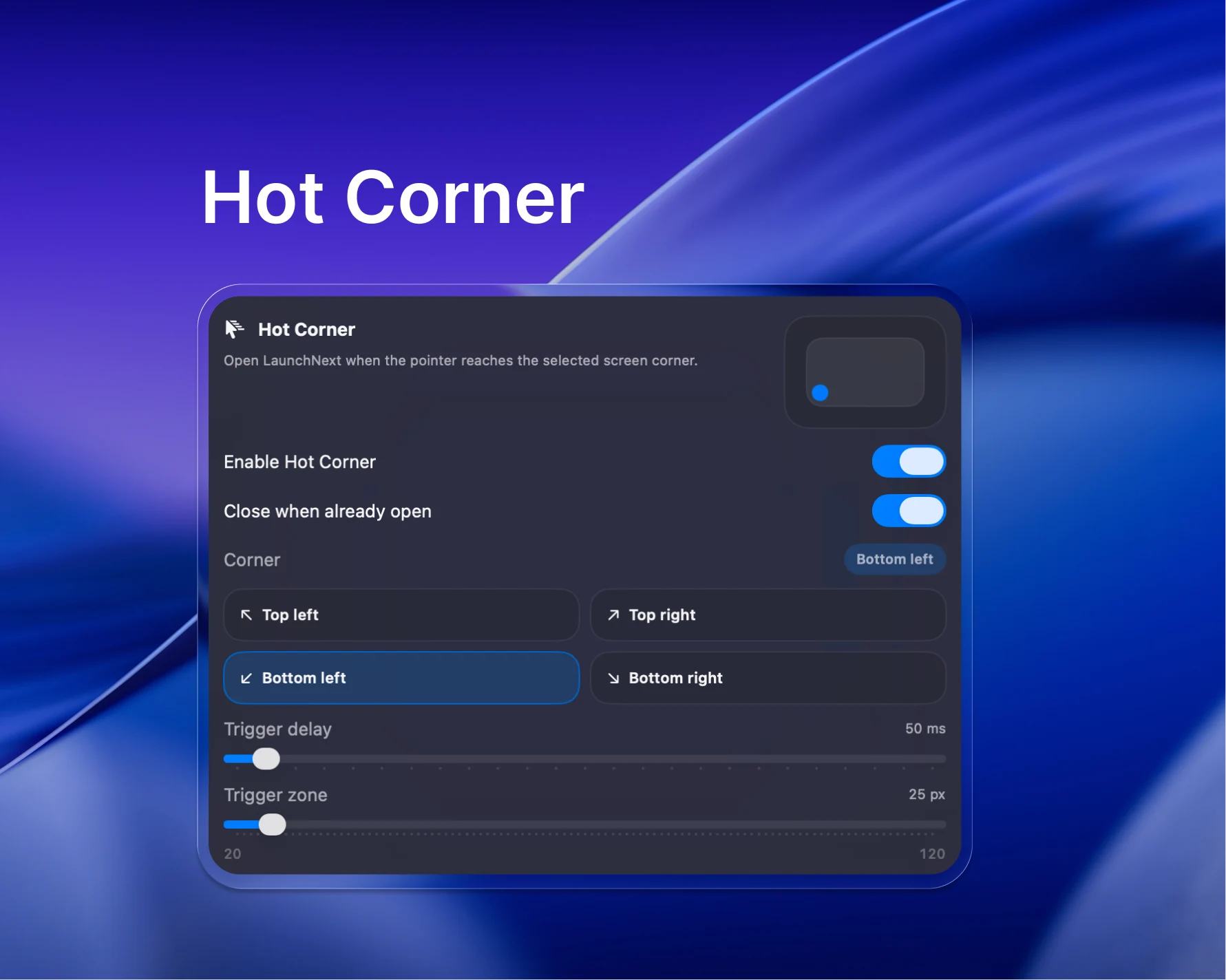
Move your cursor to any screen corner and LaunchNext opens. Each corner is independently configurable, with adjustable delay and trigger area size. If you already use Hot Corners for Mission Control or the screensaver, just pick a different corner.
This came from a user request. Once I tried it myself I understood immediately — there’s no lower-friction way to open an app. No chord, no gesture, just intent.
Drag to Dock
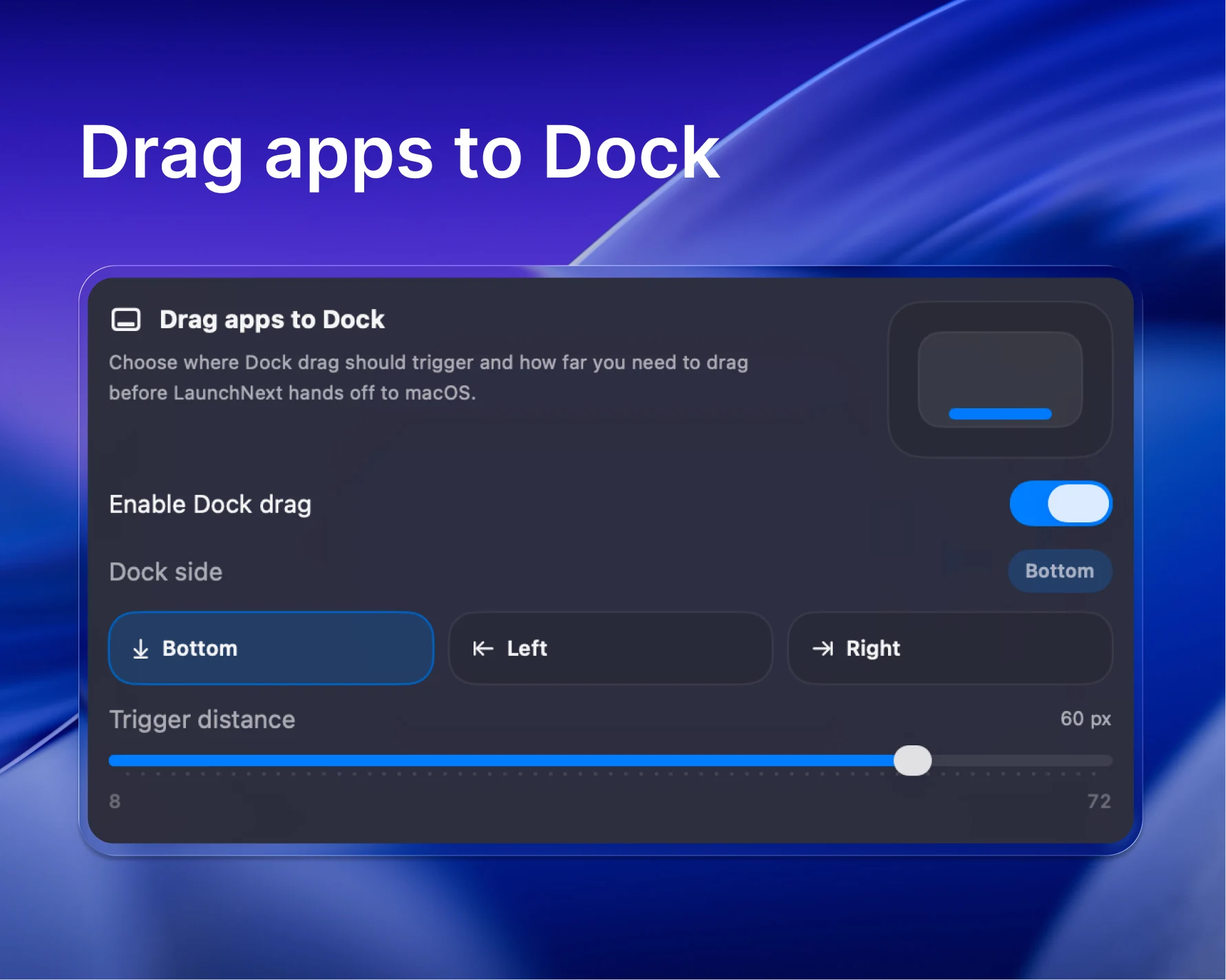
You can now pick up any app in LaunchNext and drag it directly to the macOS Dock.
This took a while to get right. LaunchNext already has its own drag system for rearranging icons and creating folders, so getting both to coexist — correctly telling apart an internal drag from one heading toward the Dock — required careful work. Preferred Dock side and trigger distance are both configurable in Settings.
App Uninstaller Integration
Right-click any app to uninstall it in one click. Set your preferred uninstall tool (AppCleaner or any compatible app) in Settings once, and it shows up in the context menu everywhere.
The right-click menu also got a broader upgrade in this release: folder dissolution, batch app selection in Core Animation mode, and the uninstaller option are all in there now.
Fullscreen / Compact Mode Independent Settings
Up until now, changing icon size or padding affected both fullscreen and compact mode at the same time. That was always a compromise I wasn’t happy with.
2.4.0 finally separates them. If you use compact mode on a laptop and fullscreen on an external display, you can configure each independently. This should have been there from the start.
Instant Window Animation
A snappier open/close animation option. If the default animation felt too slow for your workflow, or you just prefer things to appear immediately, there’s now a toggle in Settings.
Layout Import
The first thing LaunchNext gets right is import. It reads directly from the native Launchpad SQLite database, so your existing folders, app positions, and layout come across exactly as they were — no manual rearranging required. If you’re starting fresh, a Classic Layout preset gets you to a clean, traditional grid in one click.
From there: customize icon sizes, hide labels for a cleaner look, manage folders, and search with keyboard navigation. Multi-language support covers English, Chinese, Japanese, Korean, French, Spanish, German, Russian, Hindi, Vietnamese, and more. The app detects your system language automatically.
Better Performance
Early on it became clear the naive approach didn’t scale. Loading every icon upfront meant slow startups and stuttering on large app libraries. I built a new on-demand loading engine — icons load only when displayed, memory is reclaimed automatically, and startup time stays flat regardless of how many apps you have.
Later I added a Core Animation rendering path with GPU acceleration and ProMotion support. On compatible hardware, everything runs at 120fps — scrolling, drag-and-drop, folder open/close. You can enable it in Settings → Performance. The difference is immediately obvious.
Activation Methods
Beyond the new trackpad gesture and Hot Corner, LaunchNext also supports:
Keyboard shortcut — still the fastest option for keyboard-first users, configurable in Settings.
Game controller — press the Menu button on any connected controller to toggle LaunchNext on and off.
App Management
Auto light/dark mode icon detection — icons automatically adjust to match the system appearance. Sounds small, but it matters when you have a full grid of icons.
Enhanced context menu — right-click any app for folder dissolution, batch selection, and uninstaller access all in one place.
Backup and Automation
Layouts take time to set up and are frustrating to lose. LaunchNext has a full backup system: choose a directory, create timestamped snapshots, and restore with one click. Imports are selective — layout only, preferences only, or both.
For power users, there’s a CLI/TUI covering list, search, move, create-folder, snapshot, and more. It’s compatible with AI agents and scriptable workflows. I use it myself for layout management.
More Features
Per-display page indicator — configure page indicator offset and padding independently per connected monitor.
First-run onboarding — new installs get a guided setup for layout import and shortcut configuration instead of landing in a blank interface.
Folder accessibility — voice feedback and game controller navigation work inside folders, not just the main grid.
Release notes render Markdown — the Update tab now shows formatted text and images.
Installation
Download & Install
- Download the latest release from GitHub Releases
- Move LaunchNext.app to your Applications folder
- Launch the app
Security Note
⚠️ If macOS blocks the app, run this in Terminal:
1 | sudo xattr -r -d com.apple.quarantine /Applications/LaunchNext.app |
I can’t justify $99/year for a developer certificate on a free project. This removes the quarantine flag. Only run it on software you trust.
The list isn’t empty yet, but it’s getting there.
Roadmap
I recently read an article on Hacker News by Olivier Girardot called Good software knows when to stop. I’ll continue to maintain LaunchNext and work on macOS 15 compatibility. But other than that, unless I find bugs that need fixing or come up with genuinely good ideas, there won’t be many breaking changes. The app is in a good place.
If something’s missing or broken, open an issue.
Cover image via X / Twitter.